How to Talk to Your AI Agent From Anywhere: A Practical Telegram Setup Guide
The biggest limitation of most AI tools is that they live in a tab. You have to go to them — open a browser, navigate to the right URL, start a new conversation, re-establish context. By the time you're ready to ask your question, half the urgency is gone.
A real personal agent works the other way. It lives where you live. You send a message the same way you'd text a colleague, and it responds from wherever it is — your machine, your VPS, your server — with access to everything it knows about you.
Telegram is the best interface for this. It's already on your phone, already part of your communication habits, and it gives you everything you need to run a well-organized AI agent relationship. Here's how to set it up properly.
Why Telegram Over Everything Else
OpenClaw supports multiple messaging integrations — WhatsApp, Slack, Discord, iMessage. Telegram is consistently the recommended starting point for a few reasons.
It has a robust bot API that OpenClaw connects to cleanly. It supports groups and topics (sub-channels), which lets you organize your agent interactions by area of life rather than dumping everything into one thread. It works identically on desktop and mobile. And it's available everywhere without requiring a phone number to be shared with contacts.
Once you have it working, you'll wonder why you ever wanted AI locked inside a browser.
Step 1: Create Your Telegram Bot
Every Telegram bot starts with @BotFather — Telegram's official bot creation service. Open Telegram, search for @BotFather, and start a conversation.
Send /newbot and follow the prompts. You'll name your bot (this is what shows up in your chat list — make it personal, not generic) and choose a username ending in "bot." BotFather will give you a token — a long string that looks like 123456789:ABCdef.... This is your bot's API key.
Treat this token like a password. Anyone who has it can control your bot. Don't post it publicly, don't commit it to GitHub, don't share it in messages.
Step 2: Configure OpenClaw to Use Your Bot
In your OpenClaw configuration, add your bot token under the Telegram channel settings. OpenClaw will prompt you for it during setup, or you can add it manually to your openclaw.json or equivalent config file.
Once configured, the message flow works like this:
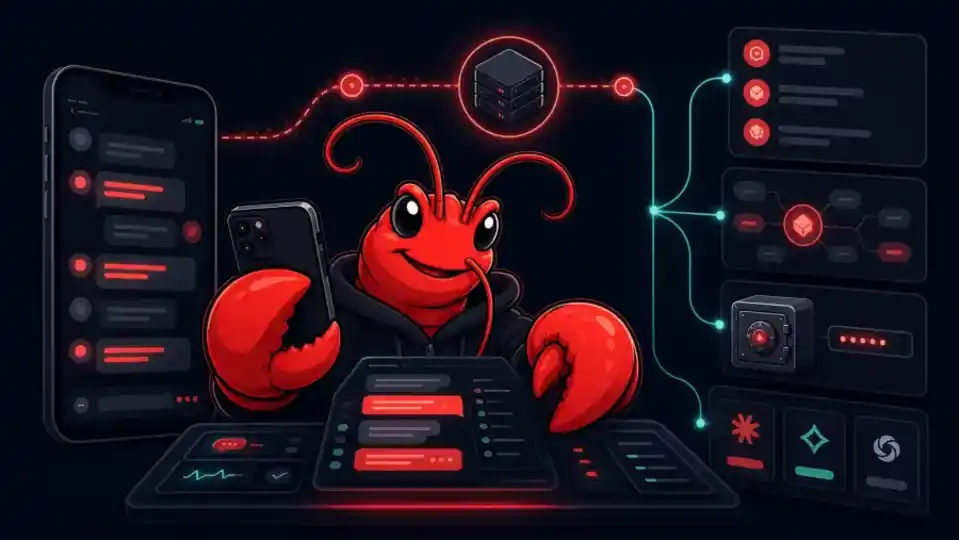
Your message in Telegram → Bot API → OpenClaw Gateway → Agent → Response → Back to Telegram
If any component in that chain is missing, the bot won't respond. The most common issue is the token being wrong or the gateway not running. Check your OpenClaw process is active before troubleshooting further.
Step 3: Build Your Group Structure
This is the step most people skip, and it's what separates a useful Telegram setup from a chaotic one.
Don't just chat with your bot in one thread. Create separate Telegram groups for different areas of your life. A recommended structure:
General / Config — Your default channel for everything. Setup commands, model switching, quick questions, configuration tasks. This is also where you test new skills before relying on them elsewhere.
To-Dos and Time Tracking — Your task management channel. Drop tasks here throughout the day, ask for status updates, and let the agent auto-update completed items. Set a system prompt like: "This channel is for task and time management. Maintain my to-do list and help me stay on top of commitments."
Journaling — Your private reflection channel. Thoughts, observations, personal notes. The agent can help synthesize patterns over time, notice recurring themes, or simply confirm it's logged what you shared.
Work — Client work, projects, CRM queries, professional communication. Keep this completely separate from personal channels so context doesn't bleed.
Content — Everything related to content creation: ideas, scripts, scheduling, analytics. Use Telegram Topics (covered below) to break this into sub-channels.
Step 4: Use Topics for Finer Organization
Inside each Telegram group, you can enable Topics — essentially sub-channels within a group. This is particularly useful in your Content group, where you might want separate threads for Ideas, Drafts in Progress, Scheduled Posts, and Analytics.
Topics keep conversations organized without requiring you to create separate groups for everything. You can have one Work group with topics for each active client. One Content group with topics for each platform.
Step 5: Set System Prompts Per Group and Topic
This is the most underused feature in a Telegram-based agent setup, and it's what makes each group feel purpose-built.
In each group's settings, you can set a custom system prompt that your agent reads at the start of every interaction in that group. This tells the agent what mode it's in without you having to explain it every time.
Examples of effective group system prompts:
For your Content group: "Treat this channel as the place where all content-related ideas, drafts, feedback, and tasks live. Help me build and maintain a strong content pipeline. Log ideas to the master ideas file when I share them."
For your Work group: "This is my professional operations channel. I have access to my CRM, Gmail, and calendar here. Help me stay on top of client communications, follow-ups, and project status."
For your Journaling group: "This is my private reflection space. Log my entries to memory. Look for patterns over time. Don't offer unsolicited advice — just confirm you've received and logged what I've shared unless I ask for more."
Each group now has a clear purpose your agent understands from the first message.
Step 6: Switch Models From Telegram
When your primary model goes down — and it will go down eventually — you want to switch in seconds, not minutes.
In your General group, type models. Your agent will display all configured models and their status. Tap the backup model. You're back online.
This is one of the reasons having a backup model chain configured matters so much. Without it, a model outage means fighting the terminal. With it, it's a two-second fix from your phone while you're in line at a coffee shop.
What Mobile Access Actually Changes
The most significant thing about having your agent on Telegram isn't the technical capability. It's the behavioral change.
When your agent lives in a browser tab, you interact with it deliberately, in dedicated sessions, at a desk. When it lives in Telegram, you interact with it naturally — the same way you'd send a quick message to a team member. You log ideas as they occur to you. You ask questions mid-conversation without stopping the conversation. You delegate tasks while waiting for a meeting to start.
The frequency of interaction increases. The depth of context your agent accumulates increases with it. The agent you have at day 90 of Telegram-native use is dramatically more capable than the agent you'd have from occasional browser sessions, because it knows vastly more about how you think and work.
That's the real value of the mobile setup. Not convenience. Compounding.
Troubleshooting the Most Common Issues
Bot doesn't respond: Check that your OpenClaw process is running. Verify your bot token is correct in the config file. Make sure you messaged the right bot username.
Bot responds but loses context: Your group system prompt may not be set. Check group settings and ensure the system prompt is saved, not just typed.
Model errors: Type models in your General group and check which model is active. If the primary is failing, switch to backup.
Memory not persisting across Telegram sessions: This is a general memory configuration issue — see the memory fix guide. The Telegram interface doesn't affect memory independently; if it's not saving, the issue is in your workspace configuration.
Based on a conversation with Moritz Kram on the Startup Ideas podcast.